Define the system. Give AI real context.

From engineering intent to connected specifications.

Define your system, structure engineering knowledge, and connect requirements. Give engineers and AI agents the context they need to build.

No account required.

One engineering workspace.Real application · fictional thermal-controller project
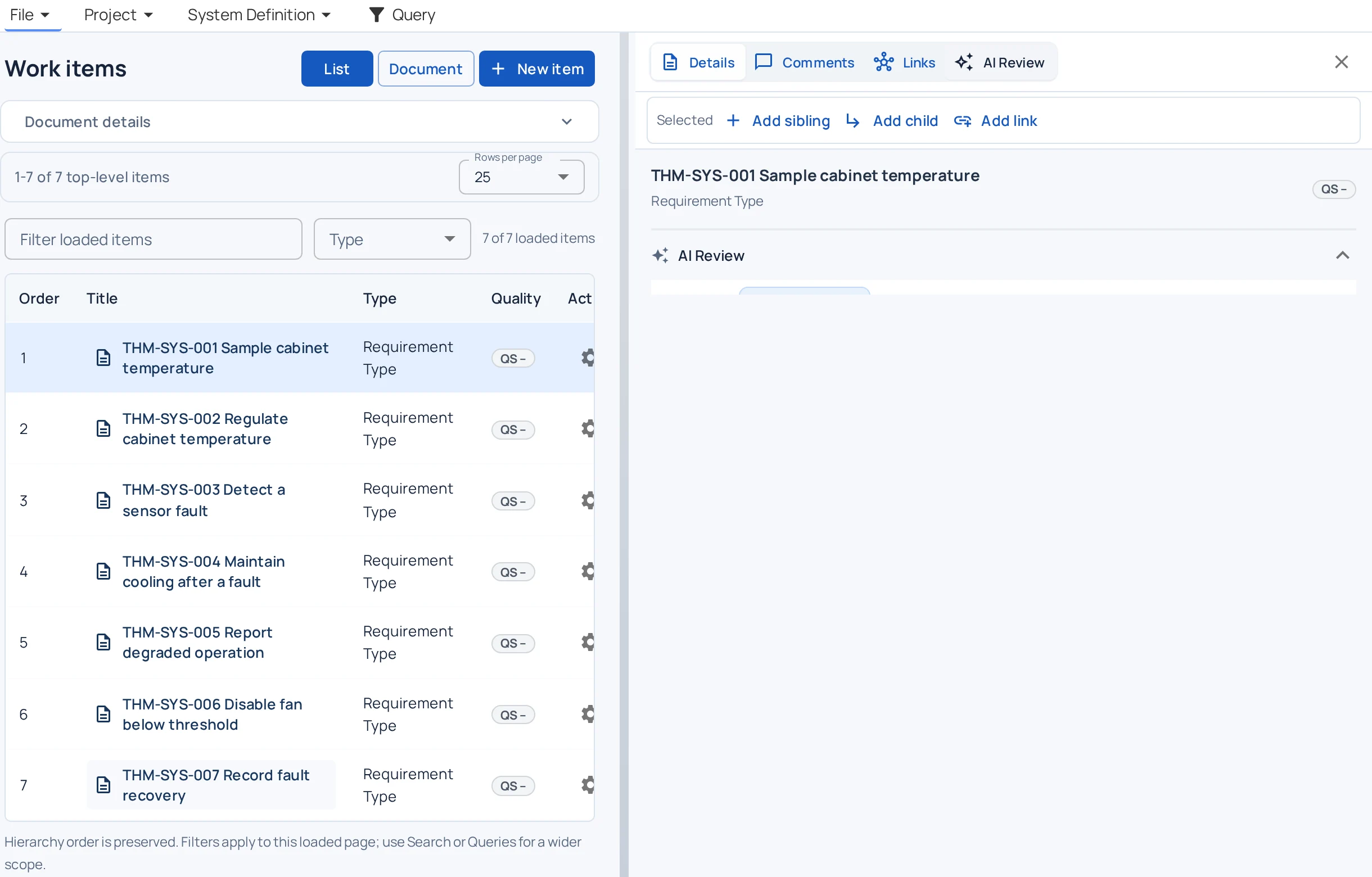
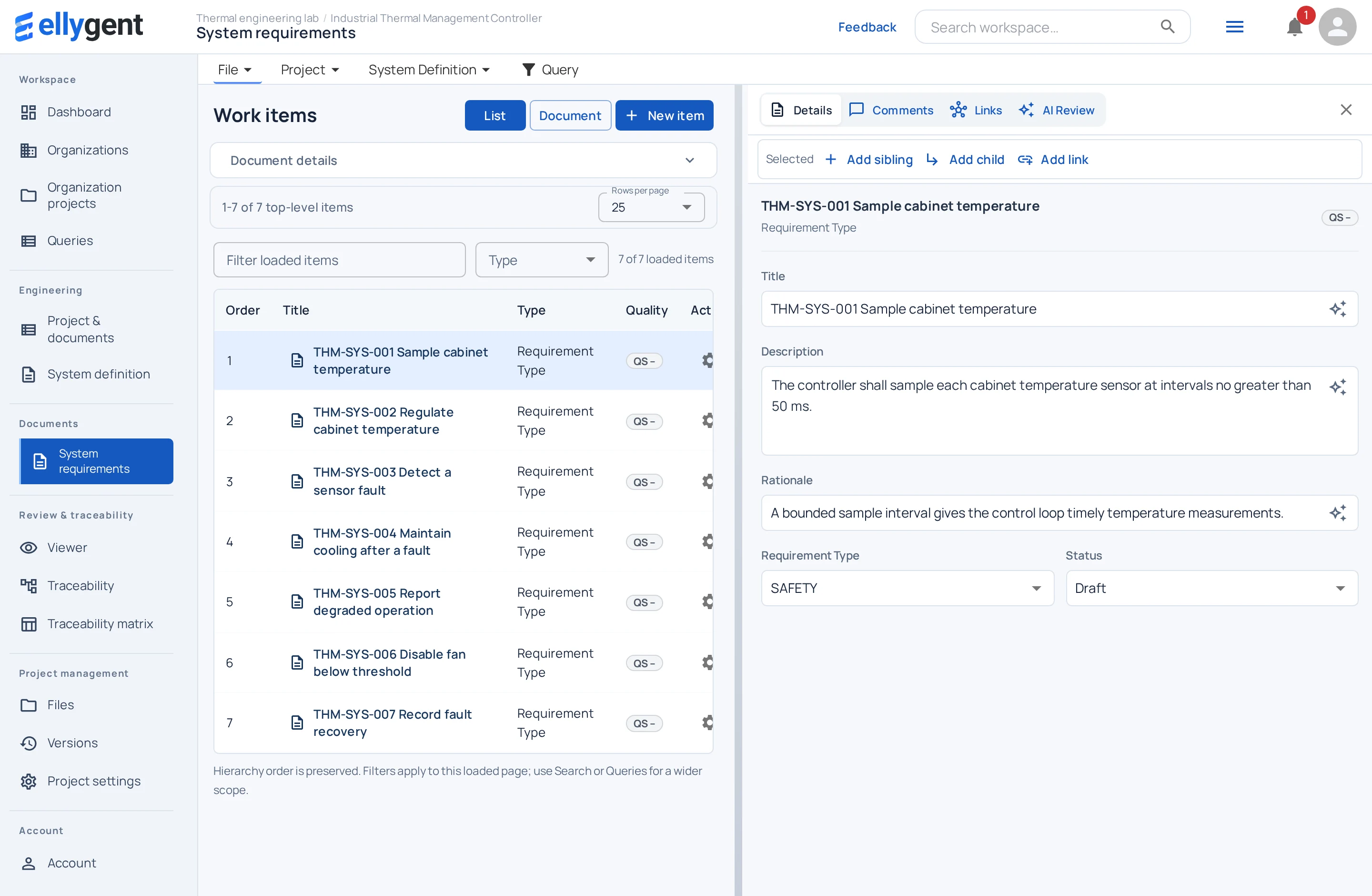
Move between the work-item list, item details, comments, links and AI Review without leaving the specification. Full resolution ↗Full resolution ↗
Actual Ellygent workspace · fictional local project

Scroll to inspect the details. Open original image ↗

01 / Work in context

Keep the system within reach.

Requirements rarely make sense on their own. Keep project navigation, the specification and the selected item together, so the next engineering question doesn’t start in another document.

Find the right item

Browse the document hierarchy or filter loaded work items. Use workspace search for a wider view.

Keep the reasoning

Write a requirement alongside its rationale and configurable attributes. Discuss it in item-level comments.

Follow its relationships

Inspect linked engineering objects, then open the context behind the requirement.

02 / Define the system

Start with the problem. Make the intent explicit.

Capture why the system is needed, how it will operate and what it must be able to do. Develop functions from capabilities while keeping the original engineering intent available for review.

  1. Problem statement
  2. Mission objectives
  3. Concept of operations
  4. System capabilities
  5. Functional decomposition
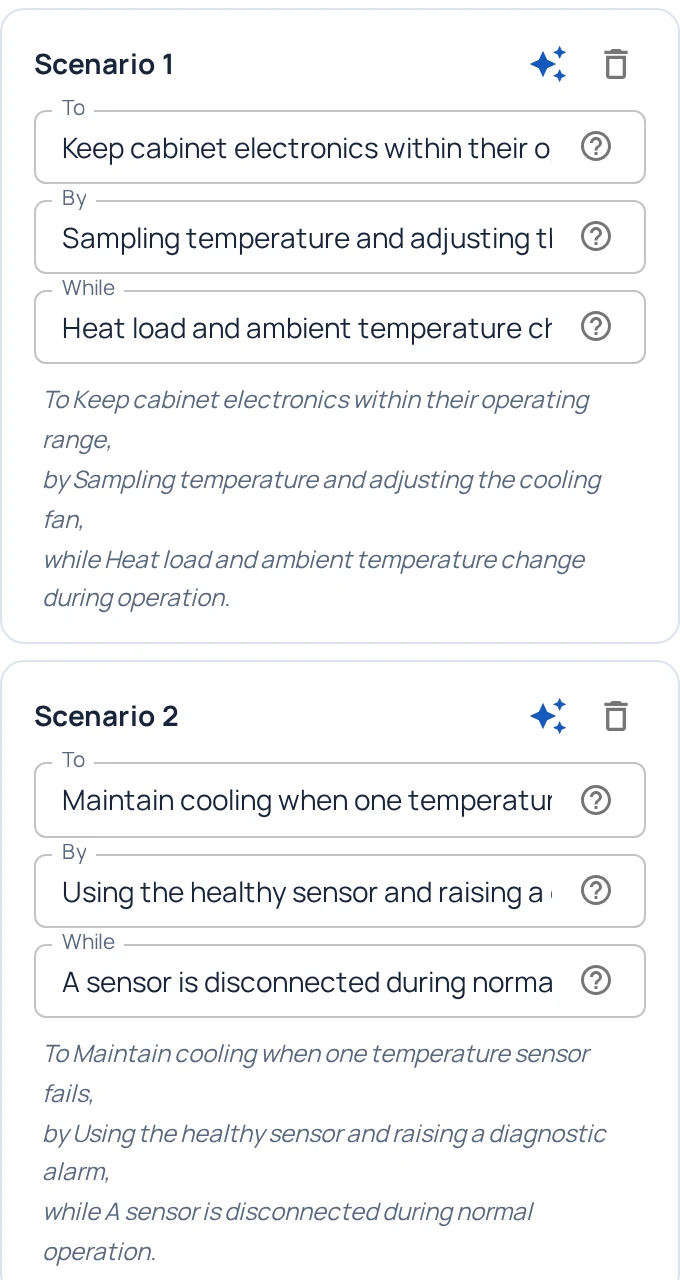
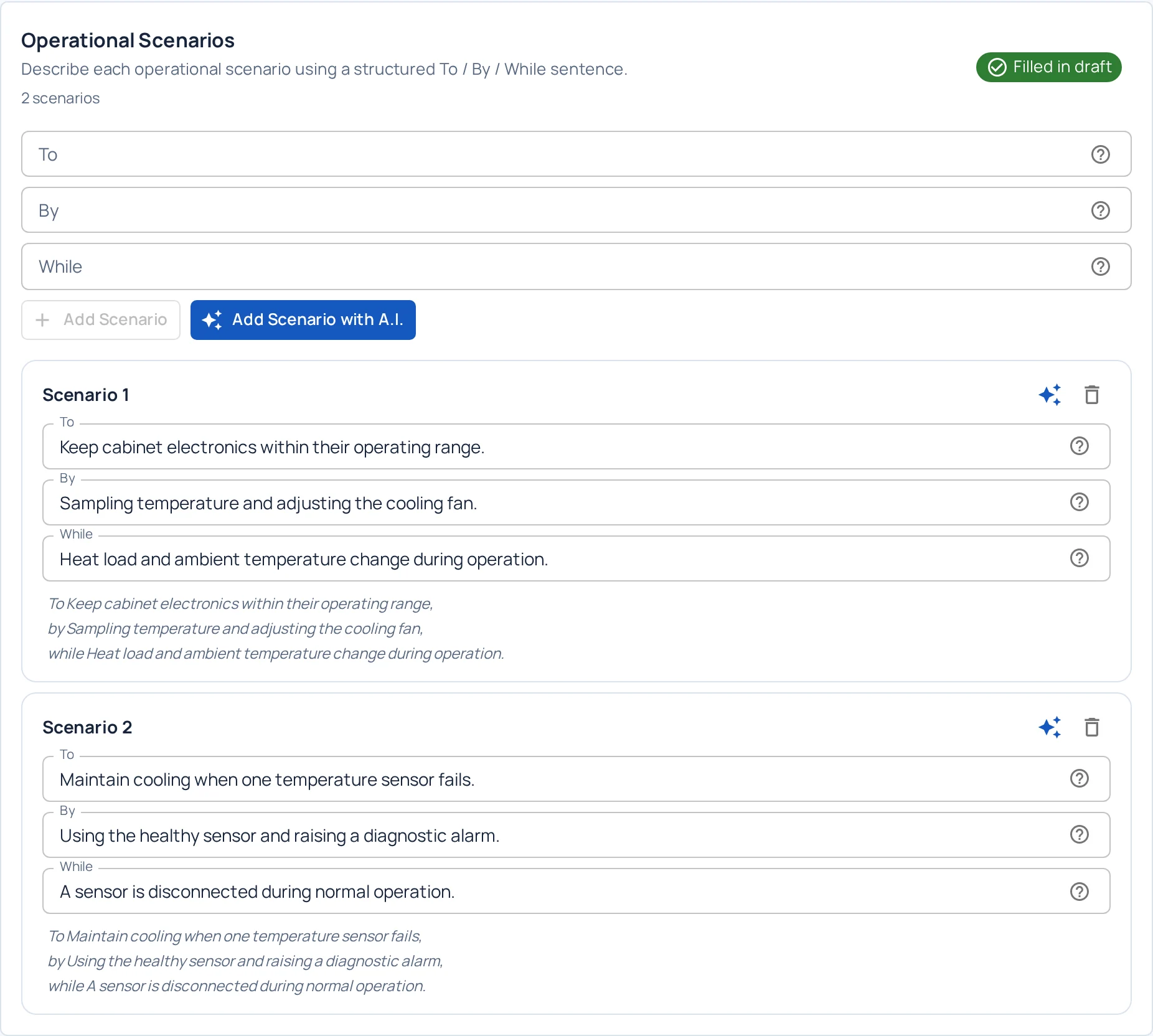
Describe normal operation and a sensor fault in the same project. These tools support your process; they do not impose one mandatory sequence. Full resolution ↗Full resolution ↗
Actual Ellygent workspace · fictional local project

Scroll to inspect the details. Open original image ↗

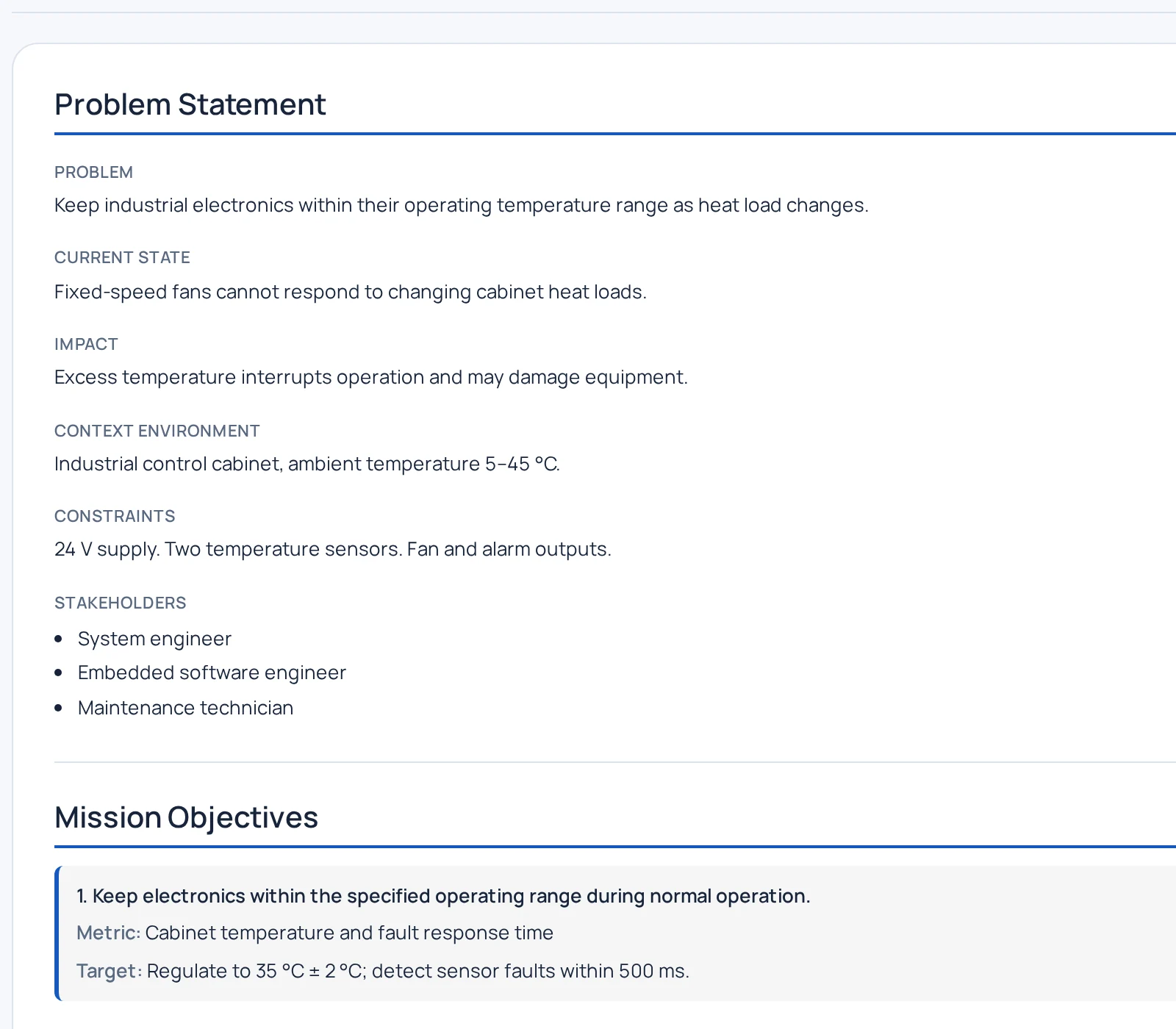
Make the problem and success criteria inspectable. Full resolution ↗
Actual Ellygent workspace · fictional local project

Scroll to inspect the details. Open original image ↗

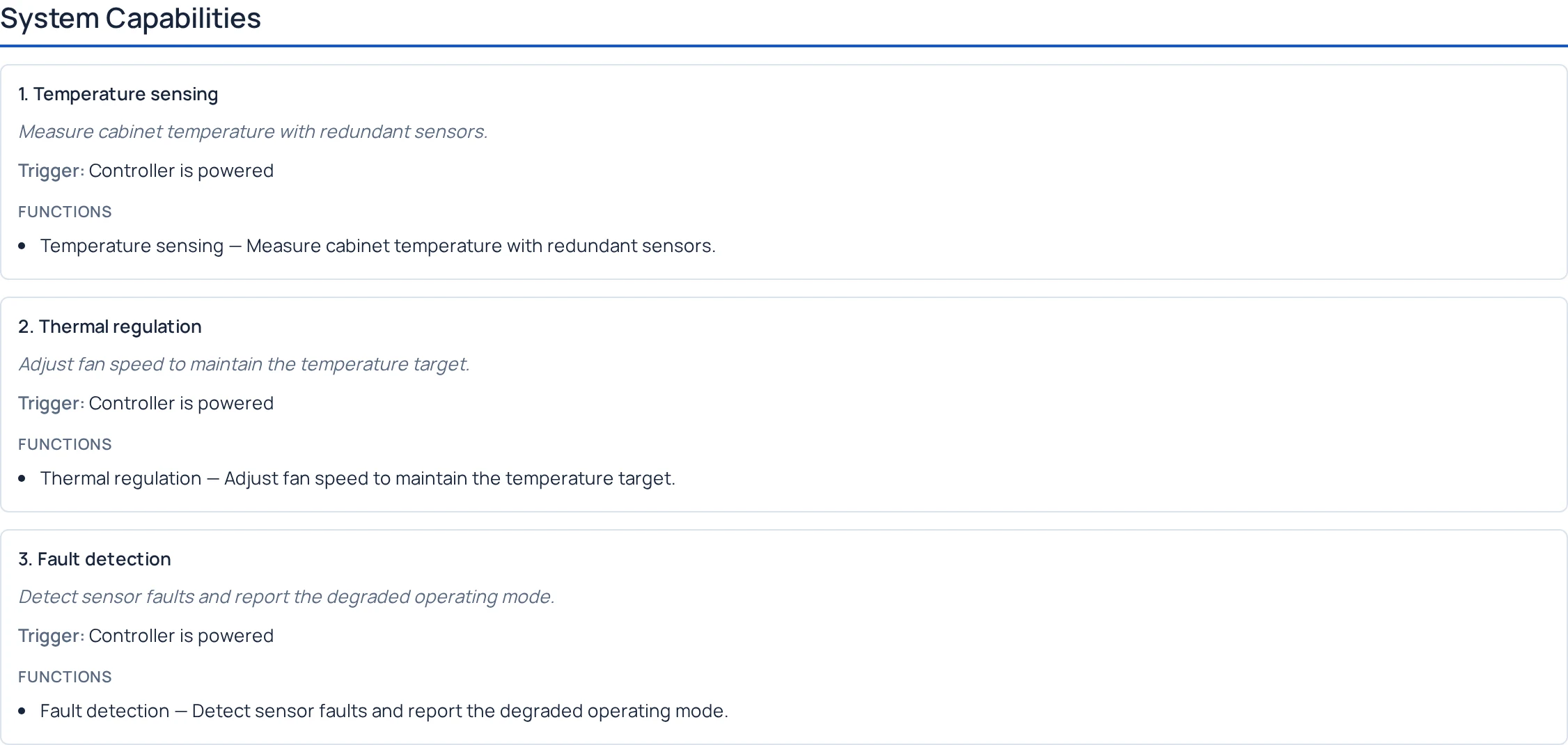
Connect capabilities to the functions that realize them. Full resolution ↗
Actual Ellygent workspace · fictional local project

Scroll to inspect the details. Open original image ↗

Read the system definition guide →

03 / Author specifications

Turn text into engineering information.

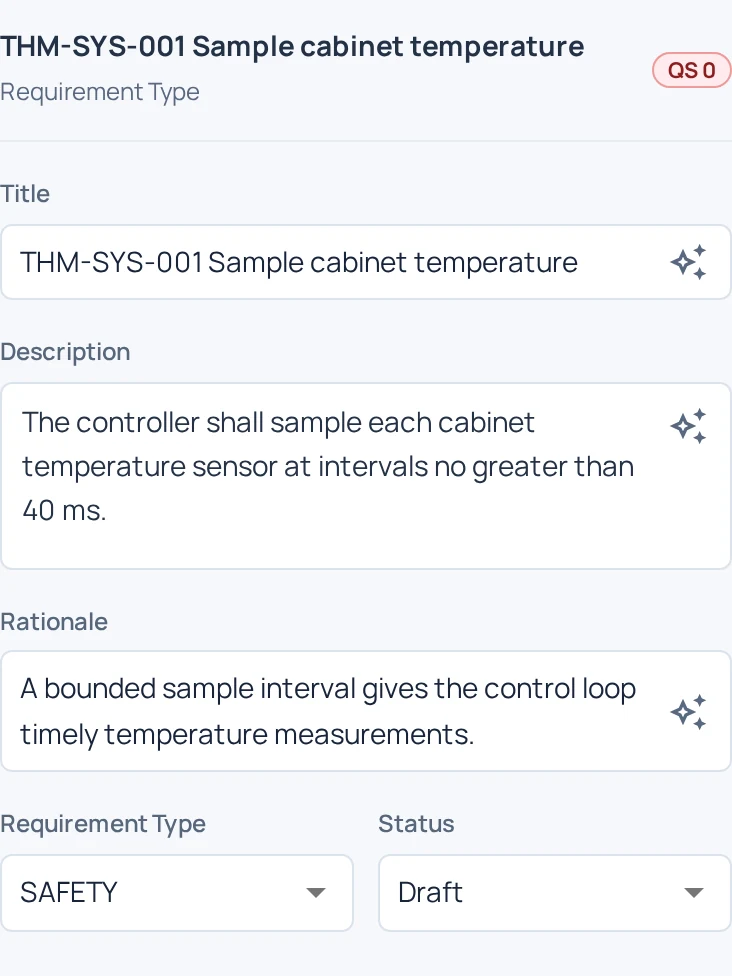
Give each requirement a place, a type and the attributes your project needs. Edit the statement, preserve its rationale and keep the saved result available to the rest of the engineering workflow.

Watch a requirement edit in the real workspace · 13 seconds · play when ready
Read the demonstration

Select the temperature-sampling requirement. Change the sampling interval from 50 ms to 40 ms in the Description field. Leave the field to save the edit. Reload the specification and open the same item to confirm that the updated requirement is persisted. The example timing is fictional, not an engineering recommendation.

Structure the specification

Create work items, arrange the hierarchy and switch between list and document views.

Use your own schema

Configure item types, attributes and enumerations for the information your team maintains.

Make changes deliberately

Edit manually or request AI assistance. Review proposed changes before applying them.

04 / Connect the engineering

See the links. Find what’s missing.

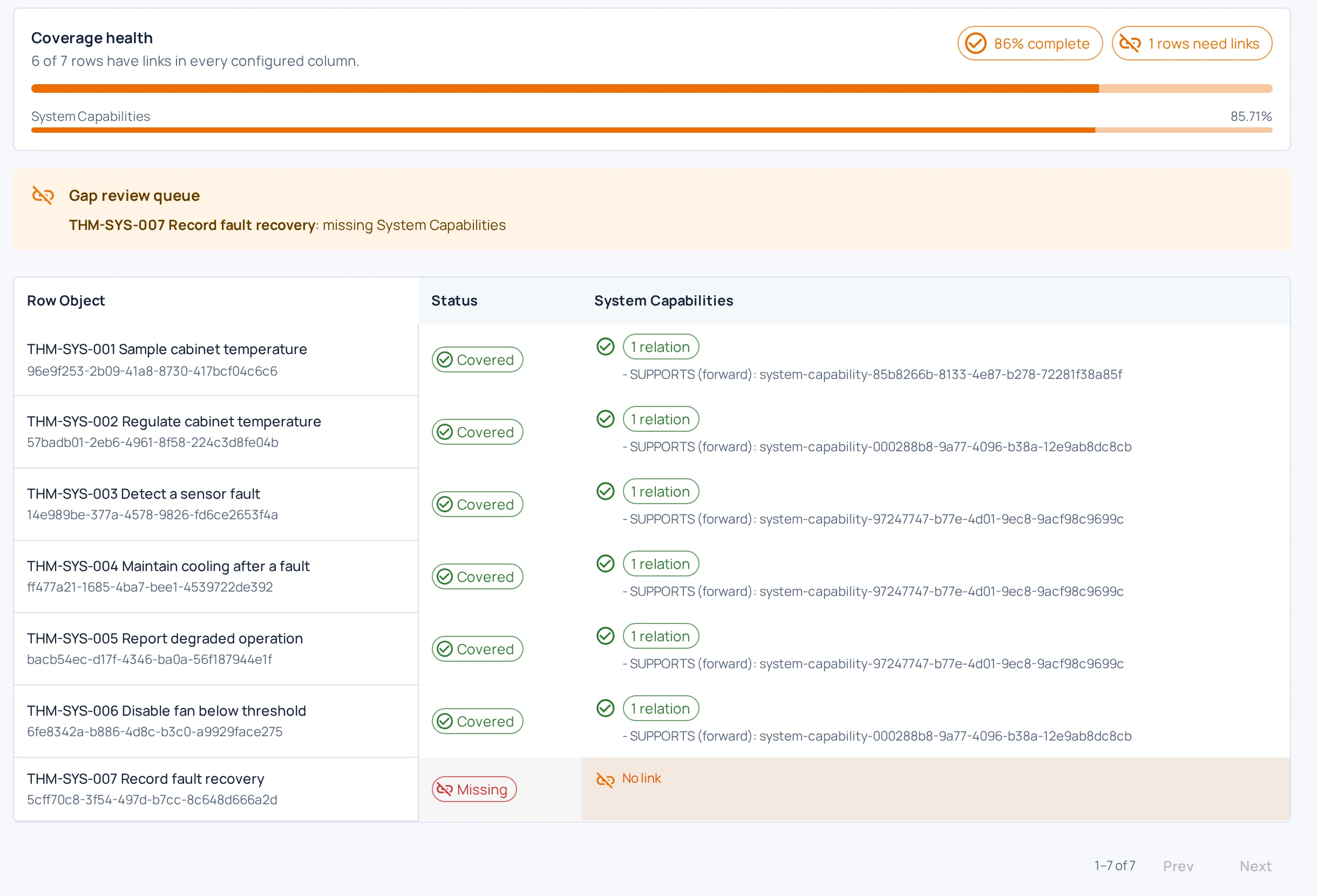
Understand which requirements have relationships to system capabilities—and which need attention. Inspect explicit links in a cross-specification matrix, then follow the connected objects during engineering review.

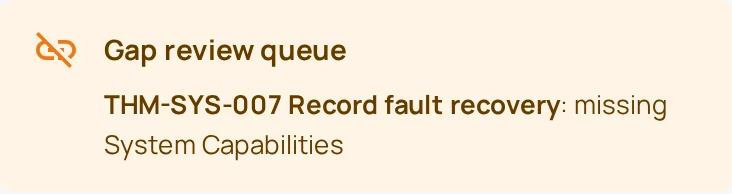
The saved example deliberately leaves fault recovery unlinked. A relationship count describes recorded links; engineers still evaluate their meaning and adequacy. Full resolution ↗Full resolution ↗
Actual Ellygent workspace · fictional local project

Scroll to inspect the details. Open original image ↗

Inspect relationships

Use saved cross-specification matrices to navigate connected engineering information.

Review gaps

Filter orphan objects and inspect stale links when relationship endpoints are missing.

Maintain explicit links

Create and review relationships between requirements, capabilities and other engineering objects.

Explore traceability →

05 / AI with engineering context

Ask for a review. Keep the engineering judgment.

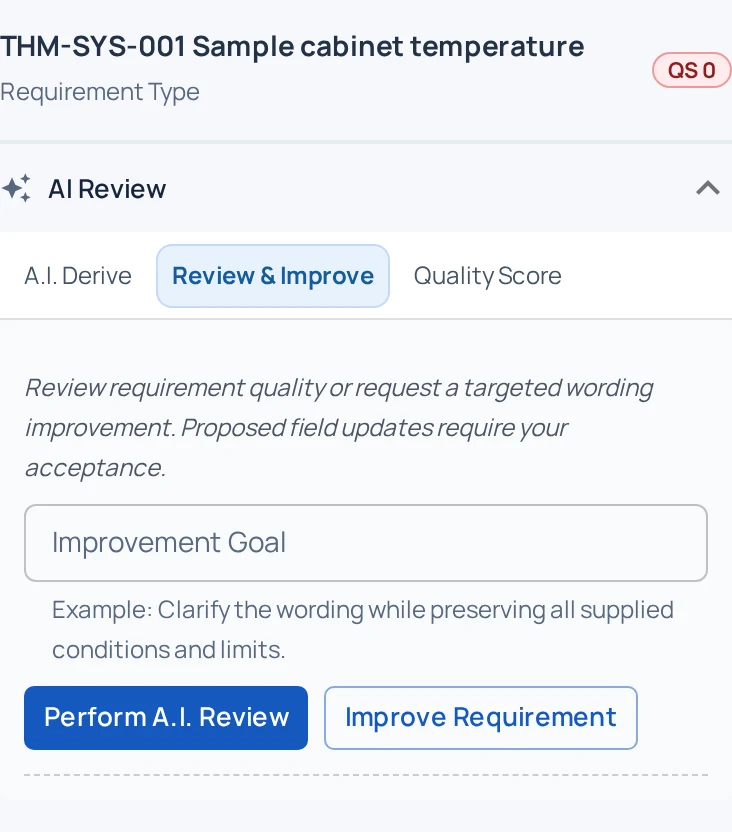
Request requirement feedback or a targeted wording improvement from the selected item. AI assistance uses the context supplied by the workflow; proposed field updates need your evaluation and acceptance.

Actual AI Review controls for the selected requirement. AI requires an available organization configuration; suggestions remain subject to human review. Full resolution ↗Full resolution ↗
Actual Ellygent workspace · fictional local project

Scroll to inspect the details. Open original image ↗

  1. Select the engineering object
  2. Request review or improvement
  3. Evaluate proposed changes
  4. Accept deliberately

Derivation tools can also propose requirements from capabilities. Organization AI profiles and published prompt template sets configure supported assistance. AI output does not establish correctness or certification.

06 / Browser to developer tools

Take engineering context into the build.

Use the Ellygent CLI to inspect available project context and export readable Markdown for developer and AI-agent workflows. Keep system definitions, specifications and explicit relationships available alongside implementation work.

Ellygent CLI / actual local command output, excerpted
$ ellygent context inspect
{
  "specifications": [{ "name": "System requirements" }],
  "traceability": {
    "available": true,
    "relationship_count": 16
  }
}

$ ellygent context pull --format markdown --out ./thermal-context
✓ Markdown exported to ./thermal-context
ℹ Version main (live)

Authenticated against the same fictional project. Default project configured before these commands. Paths shortened for readability.

Inspect before exporting

Discover the available definitions and specifications for a selected project.

Bring the context with you

Export Markdown documents and use the included context in your existing developer workflow.

Choose the access path

Use authenticated CLI access. Sandbox pairing depends on the environment and provides limited, read-only access.

CLI setup and command reference →

07 / Preserve and exchange

Keep a reference. Review incoming change.

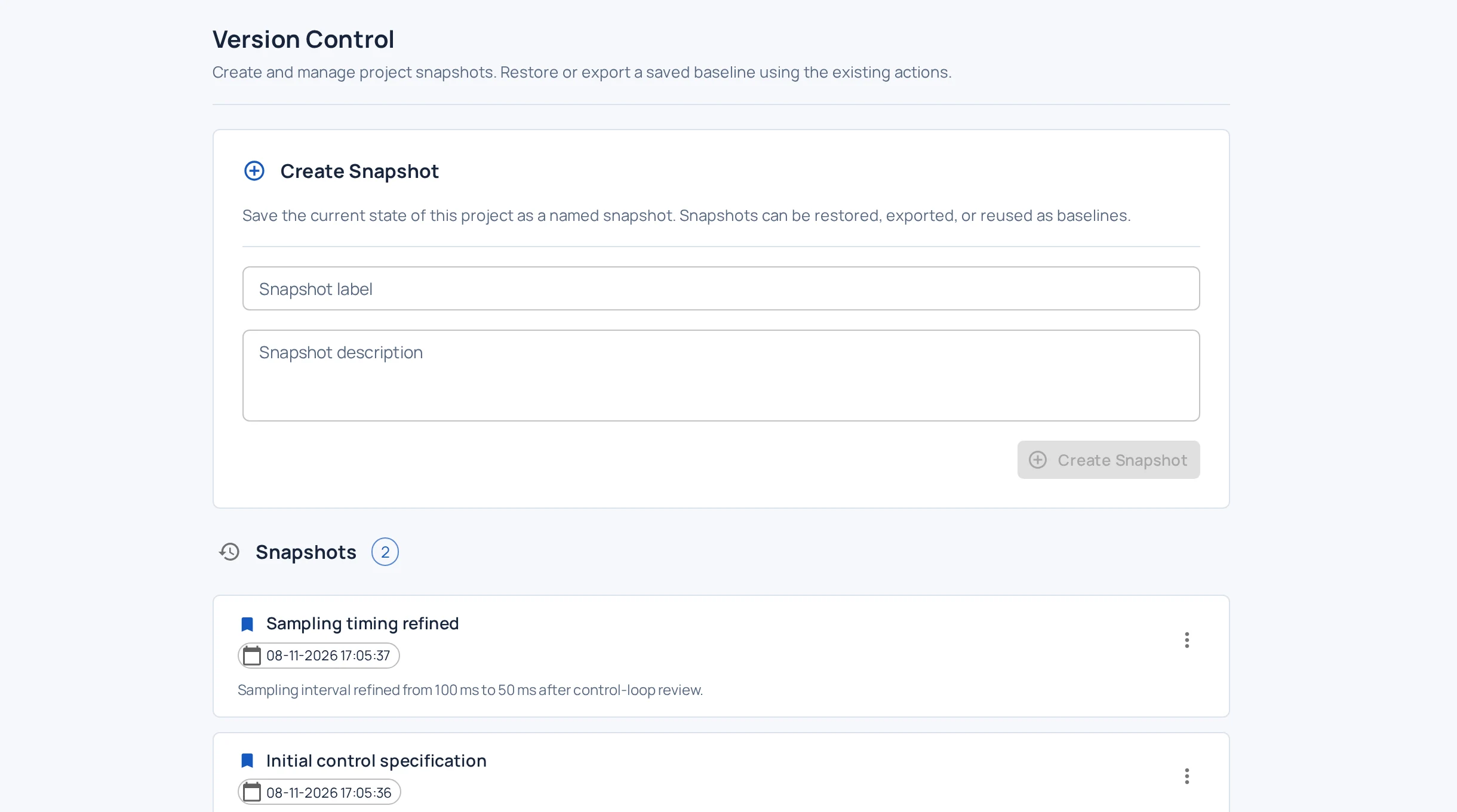
Capture the project as a named snapshot for later restoration or export. Exchange engineering content through ReqIF, and inspect before/after differences when reviewing an incoming ReqIF import.

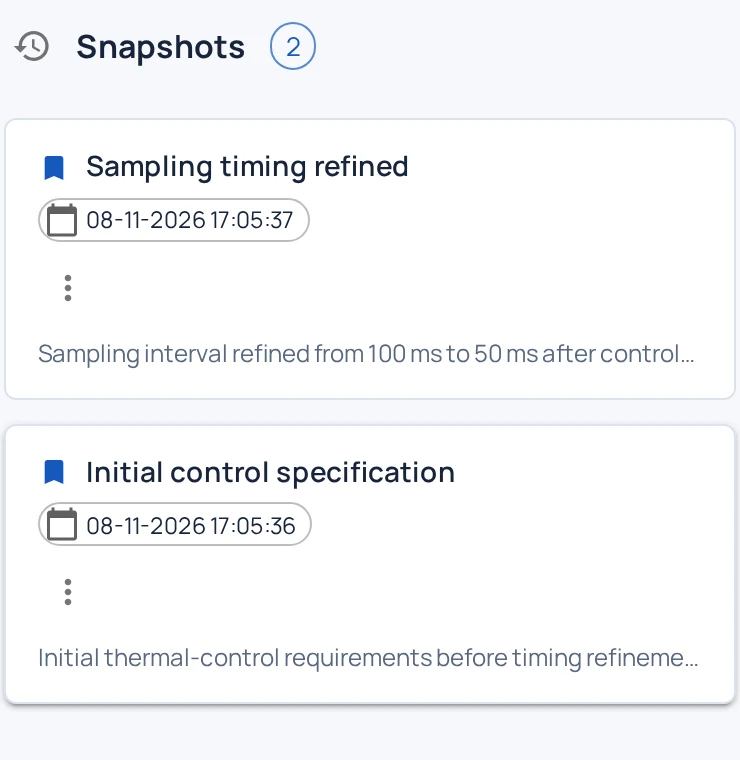
Named snapshots preserve the project state. Restore and export actions are available from the snapshot menu. Full resolution ↗Full resolution ↗
Actual Ellygent workspace · fictional local project

Scroll to inspect the details. Open original image ↗

Inspect an actual ReqIF import comparison
Before/after comparison belongs to staged ReqIF import review. Applying imported changes is a separate engineering decision. Full resolution ↗
Actual Ellygent workspace · fictional local project

Scroll to inspect the details. Open original image ↗

  • ReqIF / ReqIFZ exchange
  • Markdown specifications
  • CSV / text traceability exports
  • Markdown / text definition summary
Export options and scope →

Also in the workspace

Support the work around the requirement.

Safety engineering objects

Maintain hazards, safety goals and safety-related requirements with explicit relationships.

Read-only Viewer

Read and navigate engineering information without entering the editing workflow.

Project files

Organize supporting files alongside the project’s engineering information.

Item-level discussion

Keep comment threads attached to the engineering object being discussed.

Configurable engineering data

Adapt types, attributes and enumerations to the project’s needs.

AI configuration

Manage organization AI profiles and choose published prompt template sets.

Follow the guided remote-unlock example

One request. Follow the decisions.

Illustrative public demo · sample answers and proposals · no sign-in required

Illustrative decision status

3 unresolved · 0 deferred · 3 proposed requirements depend on these decisions.

Unresolved: offline behavior, confirmation timeout, access revocation.

This teaching view is not a product completeness score. Further engineering questions can remain after every sample answer is selected.

Stage 1 of 7

Capture request

Feature request

“Let users unlock the door from the app.”

Operating context

A resident uses a mobile app, an access service and a connected door controller. Connectivity can fail between a request and physical actuation.

SCN-01 · Remote unlock

Trigger: the resident selects Unlock. An authorized resident gains access when the controller reports the lock physically unlocked. Request acceptance alone is not confirmation.

In scope: the app, access service, command dispatch and physical confirmation. Mechanical key access and emergency egress design are outside this example.

Choices stay in this page’s memory. Resetting or reloading restores the sample; nothing is saved to a real project.

Define. Connect. Share.

Give your next engineering decision a connected starting point.

See how system intent, requirements and relationships fit together. Then try the workspace with a fictional system.

No account required. Compare plans.
Ellygent

Define the system.
Build on shared understanding.

© 2026 Ellygent