
Find and navigate
Browse specifications and their engineering hierarchy by title. Search the active export by title, category, content or identifier.
Developer tools · Private preview
Find the requirement, see why it exists, and follow its test links without leaving your editor.
This page describes preview v0.4.5. The extension is not on the Marketplace, and there is no public download yet.
These instructions are for testers who already have the private VSIX package. You can read this guide without an account.
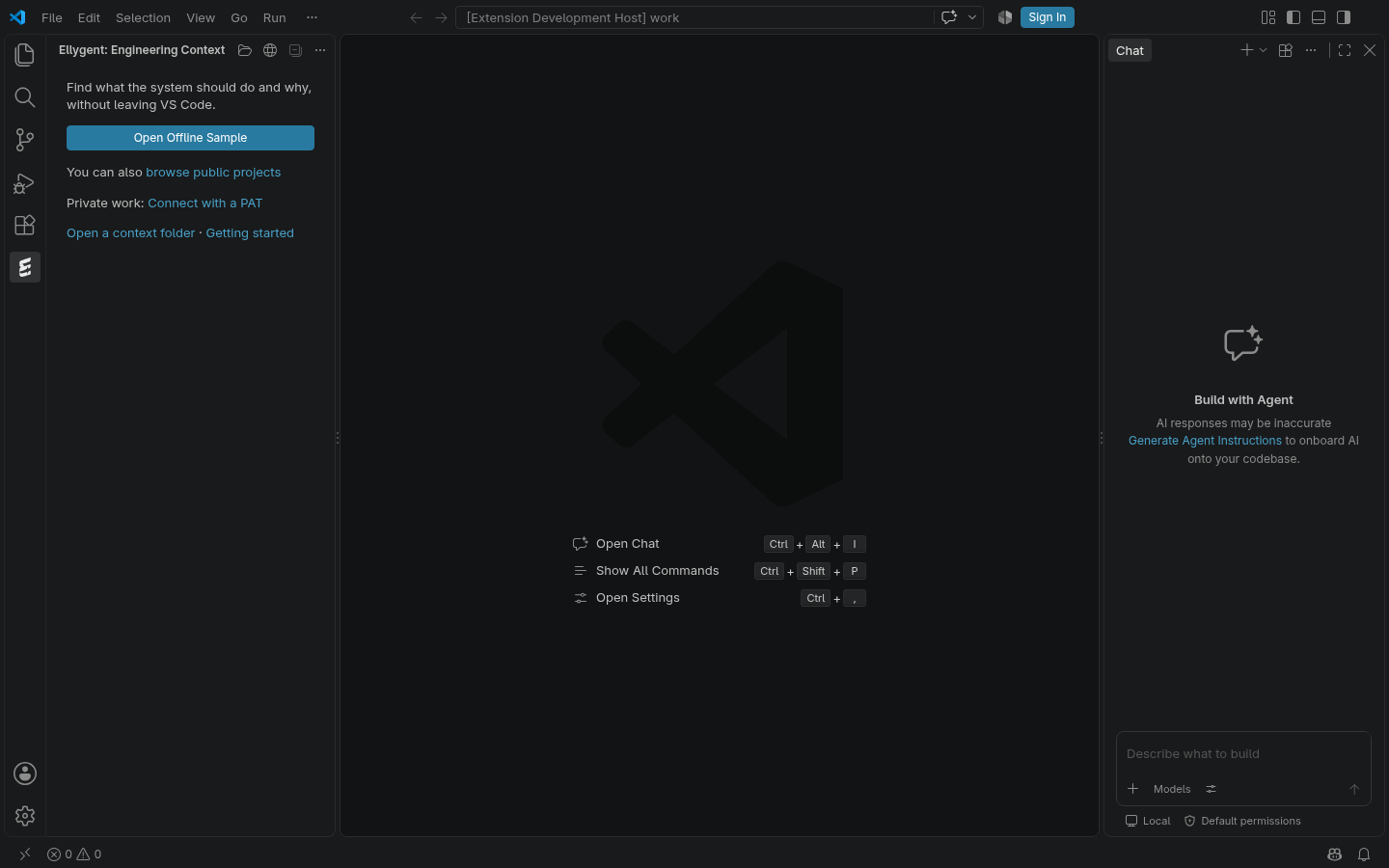
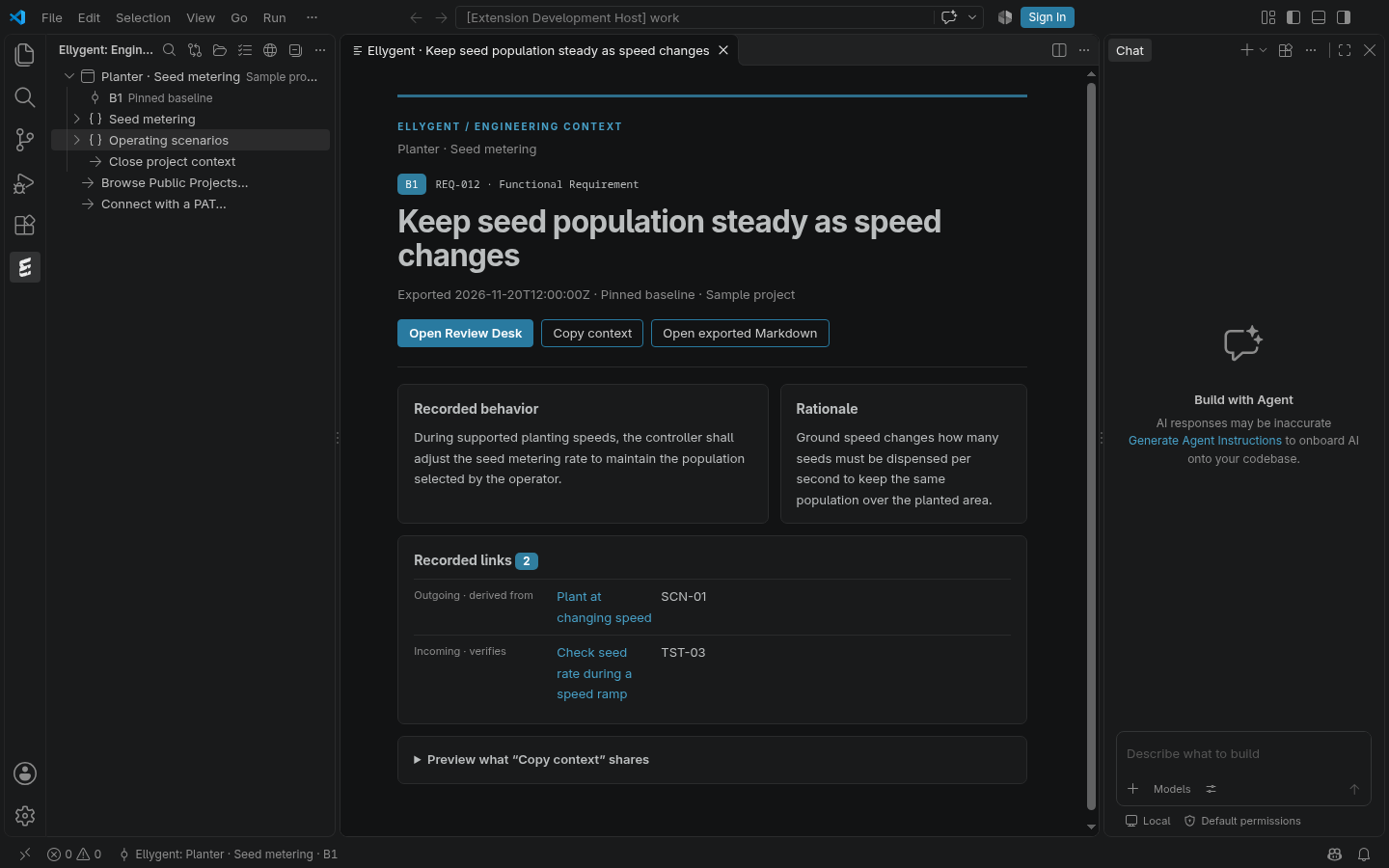
Browse a public snapshot: choose Browse Public Projects or run Ellygent: Open Public Project Link. When the gallery is enabled and has published snapshots, you can read their approved documents and search without a token. If the gallery is empty or unavailable, use the offline sample.
Private online access in this preview uses Ellygent CLI 0.1.3 or 0.1.4 and a read-only personal access token (PAT).
context:read token.Only one project is active at a time. Closing it keeps the project tree available. Disconnect and Forget PAT clears the extension’s local connection; revoke the key in Ellygent to disable it on the server. Local exports are not deleted.
Browse specifications and their engineering hierarchy by title. Search the active export by title, category, content or identifier.
Read rationale and recorded relationships, and compare named baselines from the same project. Missing export data does not prove a missing test link.
Work through questions about system behavior, inspect text and link changes, and preview a handoff before copying it. Copy review draft includes the selected item and its version; recorded link IDs are optional and linked item bodies are excluded. Draft proposals stay local and are not submitted or approved.
Open an extracted CLI context folder containing .ellygent/manifest.json. Private pulls create a new subfolder in your chosen directory. Refresh is explicit, not background sync.
For a connected private project, Refresh Baseline via CLI can also bundle available files referenced by the selected version’s Markdown. Referenced files lists new, changed and unavailable files. Named baselines pin document text; current server files are not verified historical evidence. External references are reported without fetching them.
The preview is for desktop VS Code (1.92 or newer). Local Linux and macOS are the intended platforms for online private access. Windows and remote workspaces are not supported for that flow in this preview. You can open an already-extracted local export.
Check that the VSIX is installed in the current VS Code profile, then run Developer: Reload Window. Run Ellygent: Getting Started to reopen the walkthrough.
Confirm that the selected executable is CLI 0.1.3 or 0.1.4. Check that your token hasn’t expired or been revoked, and that the account can access the project. Never paste a token into chat, settings, source code or a ticket.
Choose a folder outside version control for private context, or exclude the generated export folder. Review excerpts before copying them into other tools. The extension doesn’t send them automatically.
Public distribution and a Marketplace listing will follow preview validation. Broader platform testing and a simpler setup are next areas to evaluate. This preview does not edit live projects, provide public snapshot downloads, or automatically send data to AI tools.
Share feedback on the preview